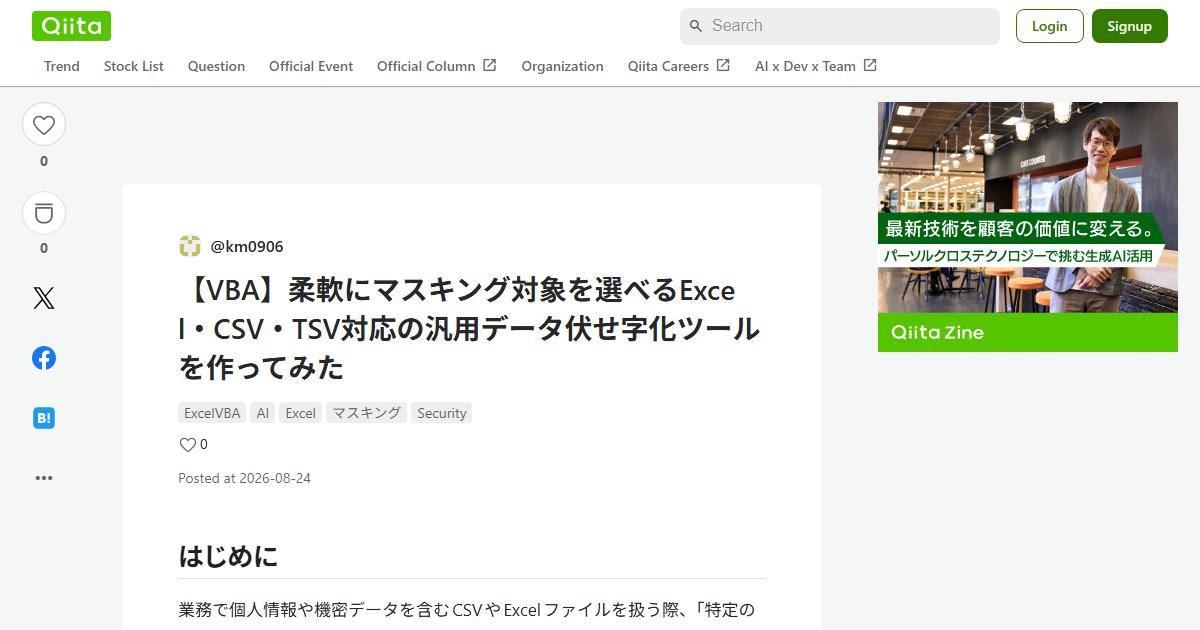
🐶 Labomaru’s Quick Take & Specs
“Protecting sensitive PII during test data preparation shouldn’t require complex ETL pipelines or length security waivers! This native VBA approach lets you scrub datasets locally with zero setup friction. 🐶⚡”
- 🚀 Tool Type: Pro Tips / Workflow Automation
- 💻 System Requirements: Any Windows PC with Microsoft Excel (Zero local GPU / Zero external software needed)
- 🎯 Best For: Data Engineers, Compliance Officers, Enterprise Developers
- ✨ Key Benefit: Instantly anonymizes multi-format tabular datasets locally while preserving encoding and schema integrity!
1. Key Takeaways & Real-World Impact (Before vs. After)
Sharing production datasets with QA teams, external vendors, or staging environments poses severe governance and privacy risks. Traditional workflows suffer from chronic operational friction:
- Before: Team members rely on risky manual find-and-replace, fragile Excel cell formulas, or disposable custom scripts. In strict enterprise environments with locked-down endpoints, non-engineers cannot install Python runtimes or obtain security clearance for external cloud SaaS ETL services. The result is frequent PII leakage, corrupted file schemas, and hours spent on redundant manual work.
- After: A centralized, native VBA masking engine operates entirely inside Excel without admin rights or external installations. By abstracting file input/output (
.xlsx,.csv,.tsv) through memory arrays and stream objects (ADODB.Stream), users can anonymize hundreds of thousands of rows in seconds while maintaining exact character encodings (UTF-8, Shift_JIS) and formatting.
2. Hardware Specs & Setup Complexity
- Hardware Requirements: Standard business laptop (Intel Core i3/i5, 4GB–8GB RAM). Zero local GPU or VRAM needed.
- Runtime Environment: Microsoft Excel 2016 or newer (Windows environment for full COM automation capability).
- Setup Complexity: Zero Install. Simply import the VBA module into a macro-enabled workbook (
.xlsm) and run. No IT administrator privileges, Python environments, or web API keys are required. - Performance Throughput: In-memory Variant array processing enables scrubbing 100,000 rows in approximately 3 to 5 seconds.
3. Comparative Analysis & Benchmarks
| Evaluation Criteria | Native VBA Engine | Manual / Cell Formulas | Python (Pandas / Polars) | Cloud ETL / Anonymization SaaS |
|---|---|---|---|---|
| Installation & Admin Clearance | Zero (Native Excel) | Zero | Medium (Requires Python/Pip) | High (Requires Infosec Audits) |
| Speed (100,000 Rows) | Fast (3–5 seconds) | Extremely Slow (Minutes/Freeze) | Ultra-Fast (<1 second) | Fast (Latency via Network Upload) |
| Format Flexibility (.csv/.tsv/.xlsx) | High (Stream abstraction) | Low (Excel-native only) | High | High |
| Usability for Non-Technical Users | High (Excel Form UI) | High | Low (CLI / Script-based) | Medium (Web Console UI) |
| Data Privacy & Leak Risk | 100% Local / Secure | High (Human oversight errors) | 100% Local | Third-Party Cloud Exposure |
4. Pro Tips & Maximum Productivity Recipes
Tip 1: Avoid Direct Cell Access (Use Variant Array Ingestion)
Never iterate through cells line-by-line using Cells(r, c).Value. Transfer the entire sheet range into a memory array (Variant Array), transform the elements in memory, and write the array back to the worksheet in a single step.
' High-Performance Memory Array Masking Example
Sub MaskColumnData(ByRef DataArray As Variant, ByVal ColIdx As Long, ByVal MaskChar As String)
    Dim i As Long
    For i = LBound(DataArray, 1) To UBound(DataArray, 1)
        If Not IsEmpty(DataArray(i, ColIdx)) Then
            ' Replace string content while preserving structural length
            DataArray(i, ColIdx) = Left(DataArray(i, ColIdx), 1) & String(Len(DataArray(i, ColIdx)) - 1, MaskChar)
        End If
    Next i
End Sub
Tip 2: UTF-8 Stream Handling with ADODB.Stream
Standard VBA Open statements can alter UTF-8 encoded files or corrupt Japanese/Multilingual character sets. Utilize ADODB.Stream to read and write large CSV or TSV files with exact character encoding preservation:
- Set `.Charset =